GET STARTED
From sign‑up to first sale.
Then into your books.
Six steps, in the order you take them. Setup takes about 5 minutes, and every step after the first is in your dashboard. You are paid in bitcoin, to your own wallet, and convert when you choose.
- Free up to $500/month
- No credit card to start
- About 5 minutes of setup
THE WALKTHROUGH
Six steps.
Each one links to the page that goes further. The screens are the dashboard itself, with sample data.
- 01
Sign up.
Give your name and your email; the link we email you confirms it, and there's no password. Add a passkey, your phone's or computer's face, fingerprint or screen lock, then your business: its name, its country and its category. See where you can sign up.
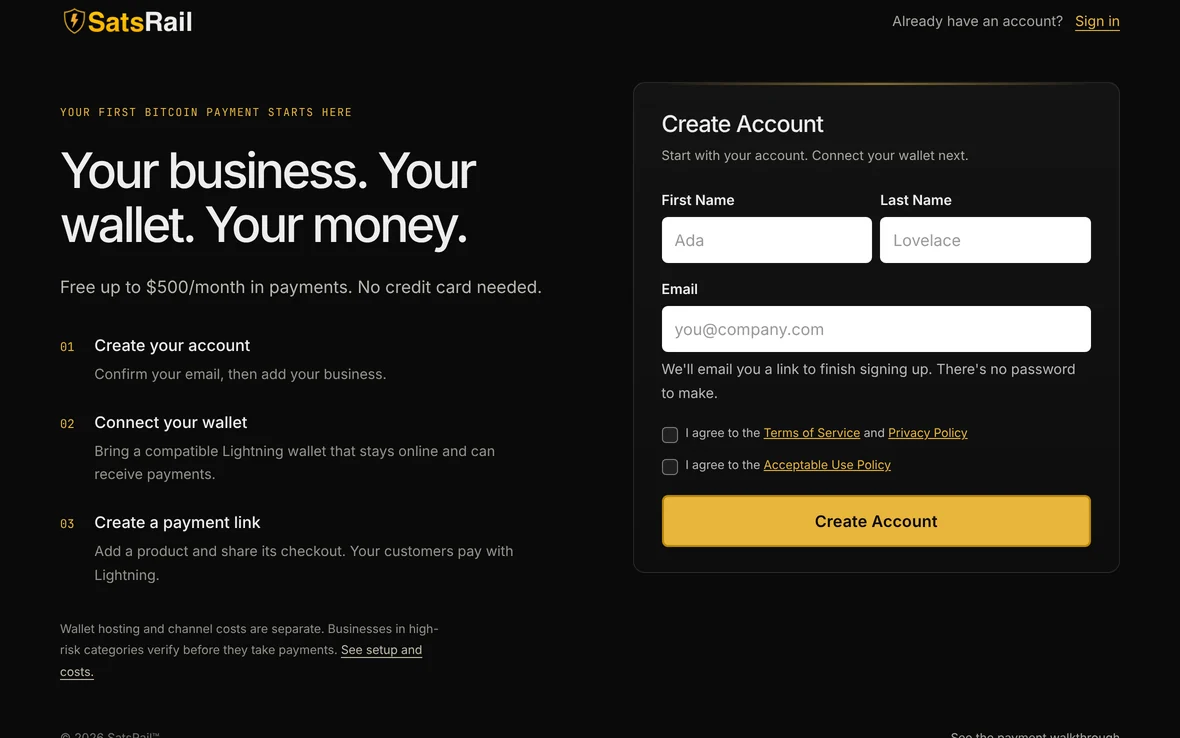
Sign-up: your name and your email, and no password. - 02
Connect a wallet.
In Settings → Payment methods → Wallets, add a Lightning wallet by its Lightning Address, and confirm it with your passkey. SatsRail checks that it can issue and verify invoices before you can turn it on. On a paid plan, add an on-chain wallet's watch-only key too. Wallet setup, step by step.
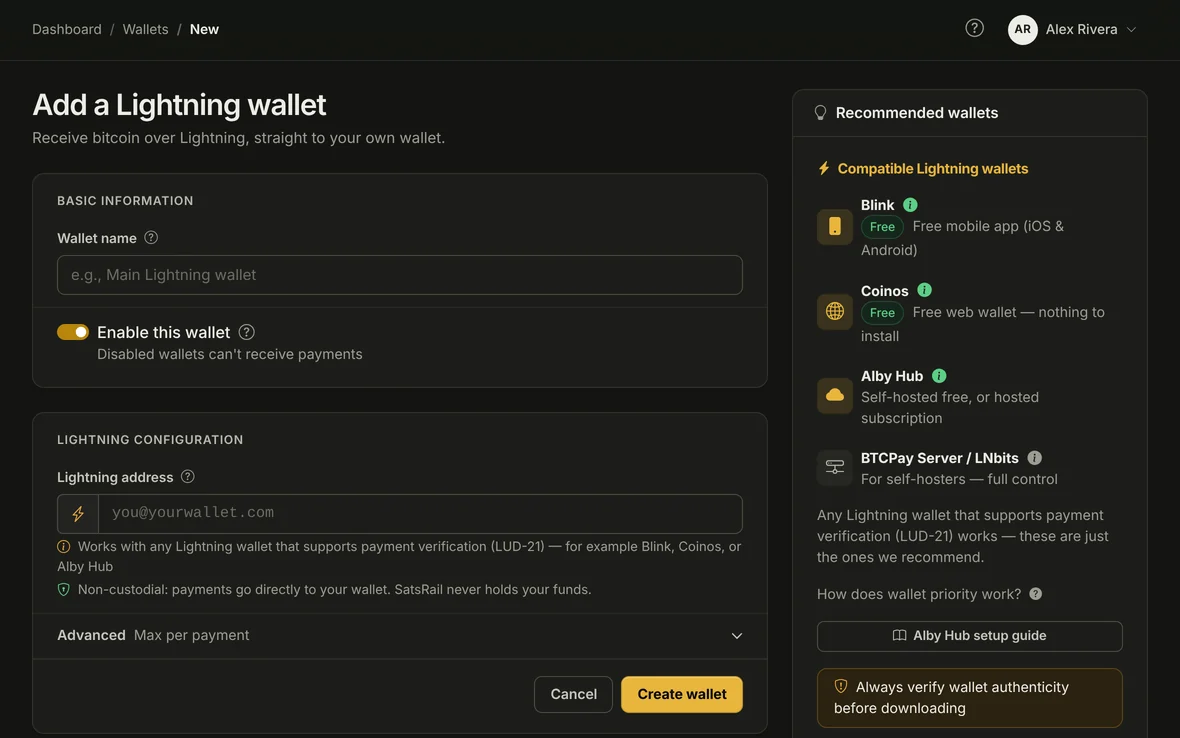
Settings → Payment methods → Wallets: the wallet's Lightning address, confirmed with your passkey. Sample data. - 03
Add what you sell.
Give each product a name and a price in your own currency, and its taxes. Products sold in sizes or flavours get an option each.
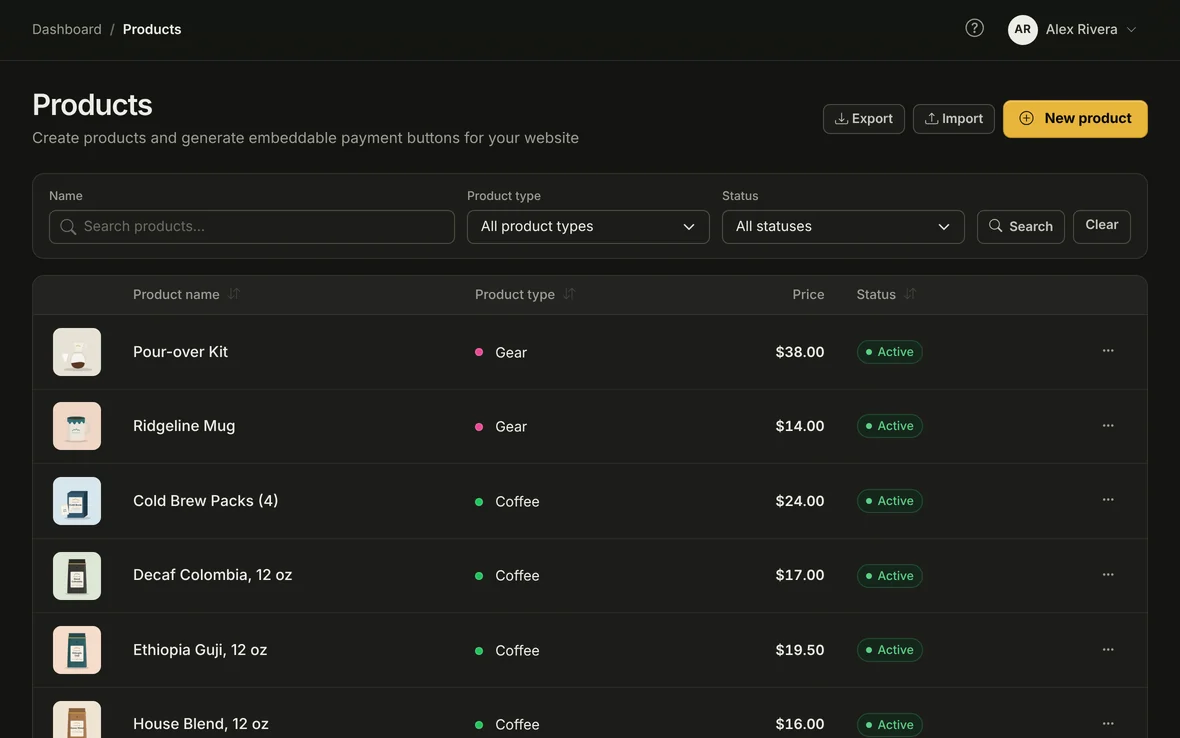
Catalog → Products, each with its own payment link. Sample data. - 04
Share a link.
Every product has a payment link. Copy it, send it by WhatsApp or email, download its QR code, or paste the checkout button on your website. Every way to take a payment.
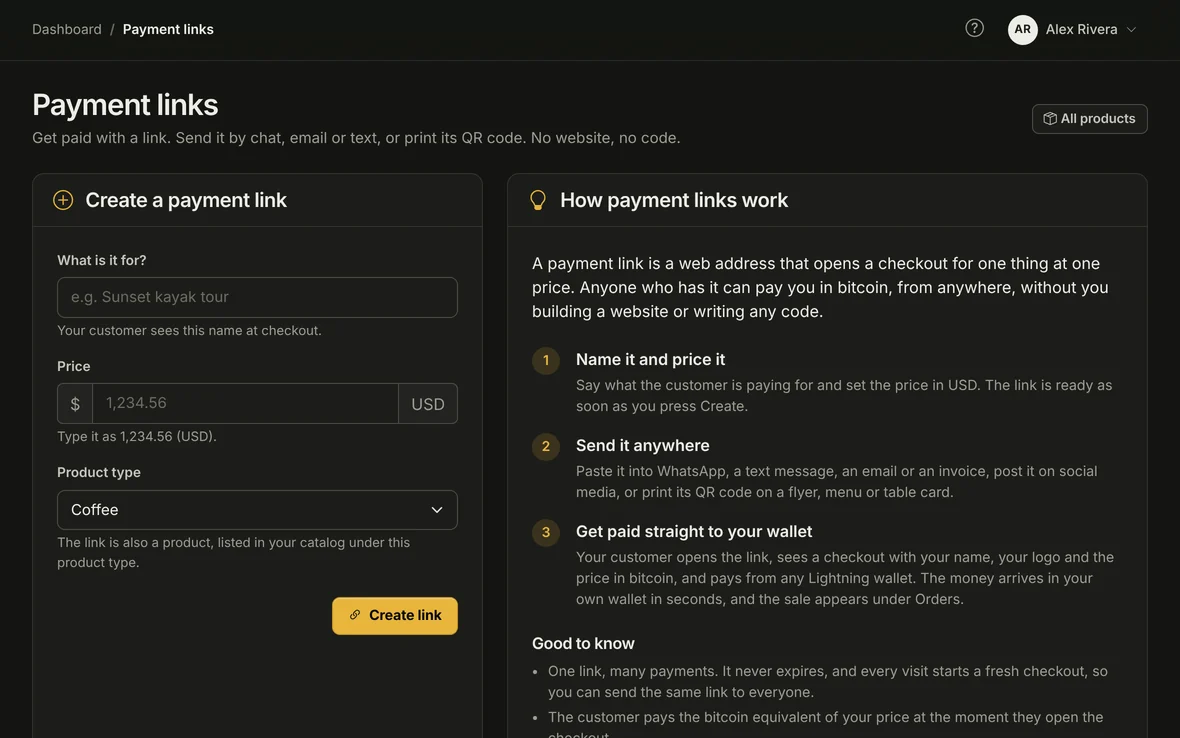
Catalog → Payment links: copy one, or show its QR code. Sample data. - 05
Take your first sale.
The customer pays from their own wallet and the bitcoin lands in yours. The sale shows on your dashboard with its items, its tax and the payment's proof.
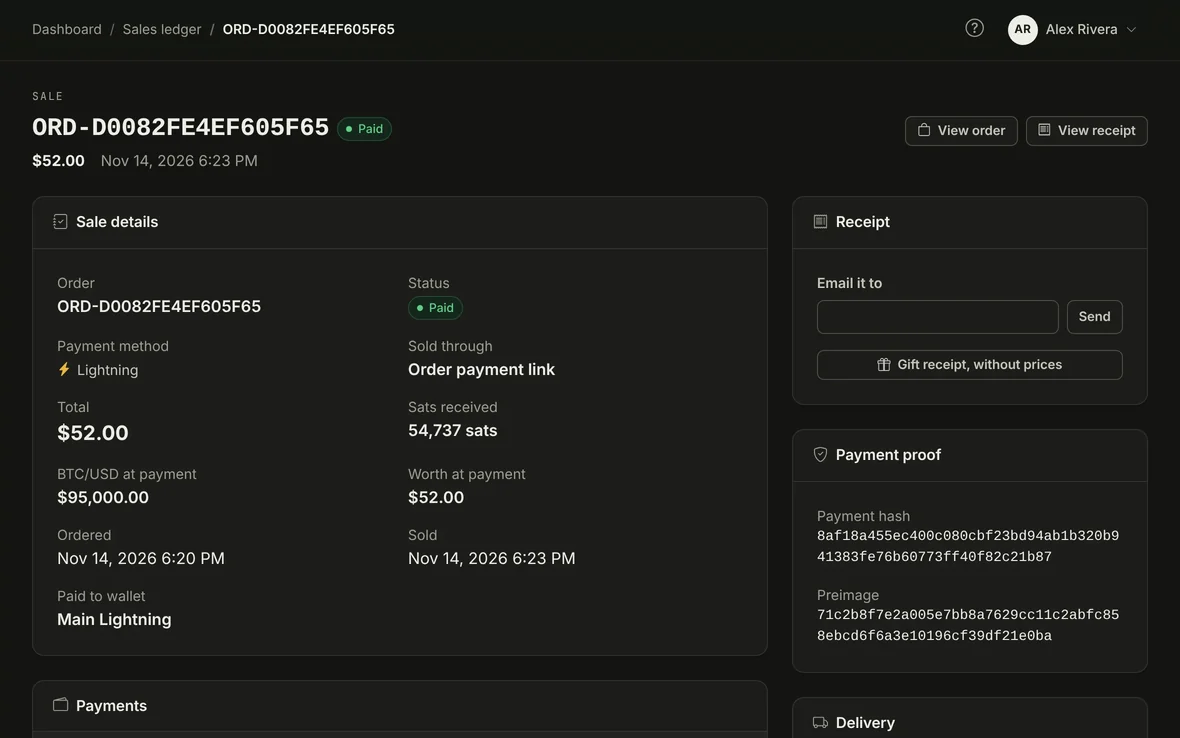
A sale in the dashboard, with the payment's proof. Sample data. - 06
Export it to your books.
Run the settlement or sales tax report for the month, and download the accounting export for QuickBooks, Xero or a spreadsheet. Invite your accountant with read-only access on a paid plan. The books and tax.
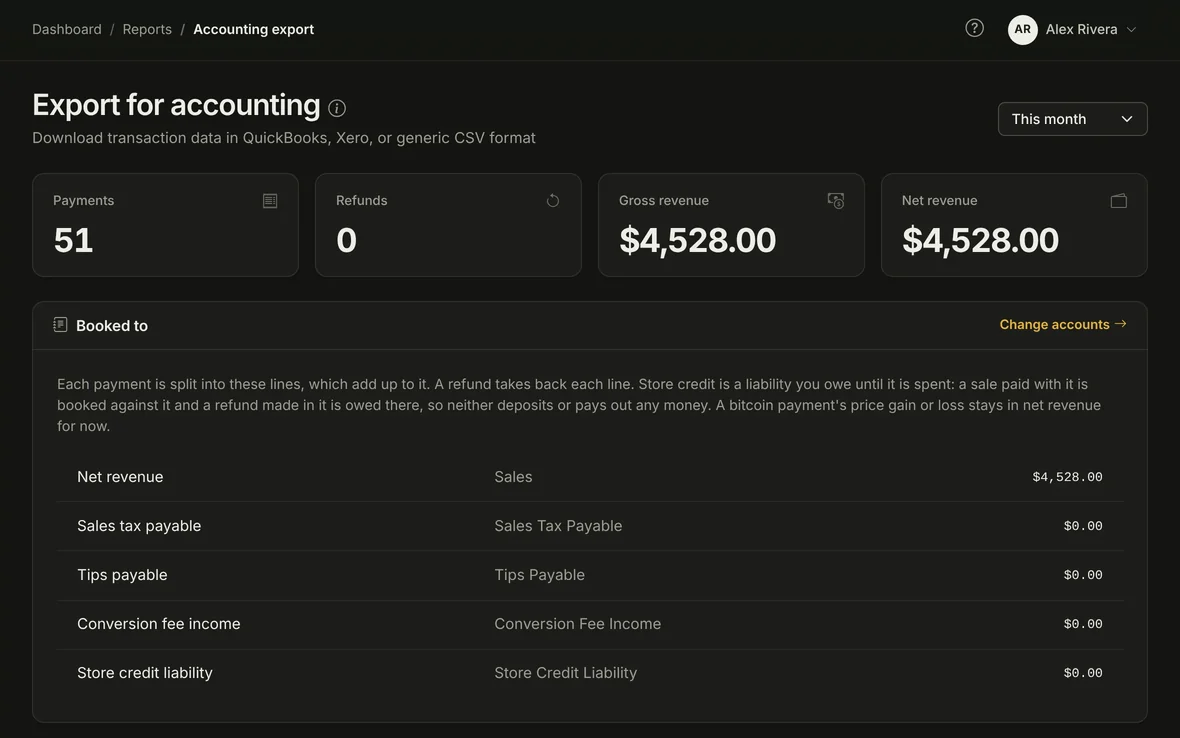
Reports → Accounting export, for QuickBooks, Xero or a spreadsheet. Sample data.
How long does setup take?
About 5 minutes to sign up, connect a wallet and make your first payment link. Most businesses can take payments as soon as they finish; a business in a high-risk category verifies first (KYB).
Can I try it before I take real payments?
Yes. Test keys, from Settings → API Keys, make test orders, and the API can mark a test invoice paid, so a developer can follow a sale through without moving money. Or pay the live 1¢ demo from your own wallet.
Which wallet should I connect?
One with a Lightning Address that issues invoices and lets SatsRail verify them, such as Blink or Alby Hub. On a paid plan you can add an on-chain wallet too, with a watch-only key from a wallet such as BlueWallet. The wallet setup guide compares them.
START WITH STEP ONE.
Five minutes to set up.
Your first sale, today.
Free up to $500/month · 0% transaction fees · Cancel anytime